
InDesign does not offer any dedicated arrow tool in its toolbar. Any arrow is created through a path (line or curve) to which endpoints are applied via the Stroke panel. Once this logic is understood, it opens up possibilities far beyond a simple arrowed line.
InDesign Stroke Panel: the real command center for arrows
The Stroke panel (Window > Stroke, or F10 on Windows) contains all the settings that transform a path into a usable arrow. We recommend always displaying it in expanded mode (via the panel menu, “Show Options”) to access the arrowhead fields.
Two dropdown menus then appear: Start and End of the path. The first adds a head at the initial anchor point, the second at the final anchor point. InDesign offers a dozen predefined shapes (solid triangles, hollow triangles, circles, diamonds, bars). These heads can be freely combined: nothing prevents you from assigning a solid triangle at the end and a circle at the beginning for a flowchart connector.
The “Scale” field under each menu controls the size of the head independently of the stroke thickness. To learn how to create an arrow in InDesign with a sharp rendering, set the scale between 100% and 300% depending on the context, then adjust the stroke thickness separately. This independence between head and stroke prevents the arrow from being distorted when changing the weight of the path.

Creating an arrow with the Line tool and the Pen tool
Straight arrow with the Line tool
Select the Line tool (shortcut ) from the sidebar. Draw a segment while holding Shift to constrain the angle to 45° or 90°. Open the Stroke panel, choose the desired head from the “End” menu, and the arrow appears instantly.
The stroke thickness affects the readability of the head. Below 0.5 pt, most heads become unreadable when printed. We typically work between 0.75 pt and 2 pt for technical documents, and above 3 pt for signage materials.
Curved arrow with the Pen tool
The Pen tool (shortcut P) allows you to place anchor points with direction handles, thus producing Bézier curves. Once the curved path is complete, the Stroke panel works exactly the same way: the Start and End menus add heads to the ends.
The difficulty with a curve is the orientation of the head. InDesign automatically aligns the head to the tangent of the path at the terminal anchor point. If the tangent is too short, the head appears misaligned. Extend the direction handle of the last anchor point to correct the angle.
Reusable arrows in InDesign: object styles and libraries
Manually recreating the same arrow on multiple pages of a document is a waste of time and a source of inconsistency. Two native mechanisms address this issue.
- Object Style: save all stroke attributes (thickness, type of head, color, scale) in an object style (Window > Styles > Object Styles). Then apply it with one click to any new path. If the client requests a switch from a solid triangle to a hollow triangle, modify the style and all arrows update.
- Object Library: drag a finalized arrow into a CC library (File > New > Library). The arrow remains available from one document to another, with all its attributes intact.
- Snippets (.idms): export the arrow as an InDesign snippet. This lightweight file can be shared among collaborators and retains the associated styles.
In a document of several dozen pages (catalog, annual report), the combination of object style + library significantly reduces production time and ensures strict graphic consistency.
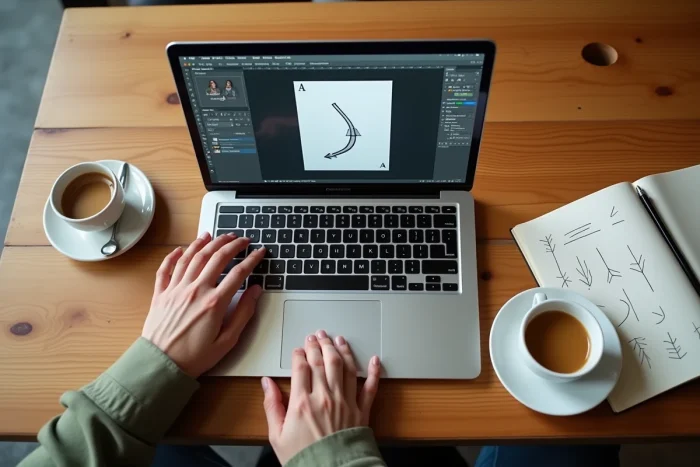
Adjusting the stroke and anchor points for complex arrows
Predefined heads cover most uses, but some projects require custom shapes. InDesign does not offer a custom arrowhead editor. The solution lies in manual construction.
Draw the head in InDesign or Illustrator as a closed vector path. Place it at the end of your line, then select both elements and group them (Cmd/Ctrl + G). The result behaves as a single object, movable and resizable.
For fine control of anchor points on a curved arrow, use the Convert Direction Point tool (Shift + C). It transforms a corner point into a smooth curve and vice versa, without recreating the path. Combine it with the Direct Selection tool (A) to reposition each point individually.
Stroke color and style
The Stroke panel also offers stroke types: solid, dashed, dotted. Apply them to an arrow to visually differentiate a main flow from a secondary flow in a diagram. The stroke color is adjusted in the Swatches panel, not in the Stroke panel itself, a common confusion among users new to InDesign.
For double-stroke arrows (border effect), duplicate the path, increase the thickness of the lower copy, and change its color. Overlay the two aligned paths: the result simulates an outer stroke without resorting to Illustrator.
Shortcuts and workflow for quickly drawing arrows
Speed of execution relies on a few habits:
- Assign a keyboard shortcut to the “Arrow” object style via Edit > Keyboard Shortcuts. We use Ctrl + Alt + F, which does not conflict with any native shortcuts.
- After drawing a line, press F10 to open the Stroke panel without leaving the keyboard.
- Duplicate an existing arrow with Alt + drag instead of recreating it. The stroke attributes follow automatically.
- On a template, place a standard arrow: each new page inherits the path without manual intervention.
Managing arrows in InDesign comes down to mastering the Stroke panel and capitalizing on object styles. The software does not provide an arrow tool per se, but the combination of path + Stroke panel + object style covers all scenarios, from a simple directional indicator to a complete flowchart.