
A Samsung TV that displays lines, a black screen, or washed-out colors does not always suffer from the same malfunction. Before replacing a panel or contacting customer service, a methodical diagnosis often allows you to pinpoint the cause in just a few minutes. The challenge is to distinguish between a software issue, a connectivity defect, or a real hardware failure, as the solution varies significantly depending on the origin.
Samsung Built-in Picture Test: The Diagnosis Most Users Overlook
Samsung TVs come with a built-in picture test tool that generates a visual directly from the panel’s processor, without relying on an external source. This test is the logical starting point for any troubleshooting because it answers a fundamental question: does the defect come from the TV itself or from a connected device?
If the defect appears on the test image as well, the problem is internal to the TV. Samsung then recommends seeking technical assistance. If the test image displays normally, you need to check the source, cable, or HDMI port used.
The access path to the test varies by model and year of manufacture. On recent models, the function is found in the Support or Automatic Diagnosis menu. Some models also offer a dedicated HDMI diagnosis, useful when the defect only concerns a single external device. This function is not available on all TVs: the model’s manual specifies its presence or absence.
Before attempting to resolve a Samsung TV image issue through trial and error, this self-diagnosis test guides you toward the right category of solution and avoids wasting time on unnecessary manipulations.
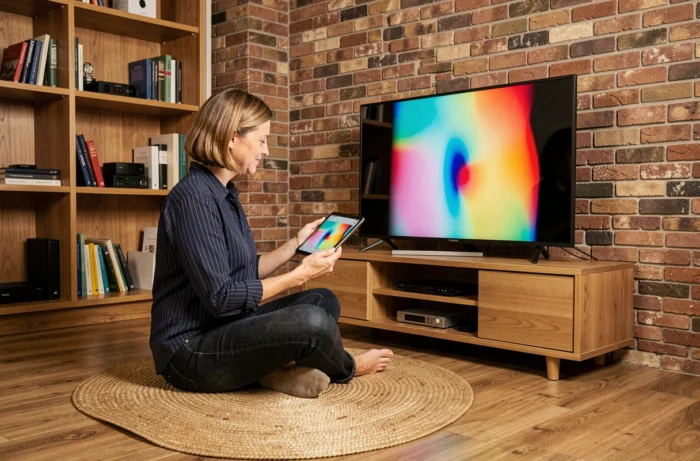
Comparison Table of Image Symptoms and Their Likely Causes
Each type of visual defect corresponds to a distinct family of causes. The table below classifies the most common symptoms in order of increasing severity, from simple adjustment errors to hardware failures.
| Observed Symptom | Likely Cause | Priority Action |
|---|---|---|
| Washed-out colors or abnormal hues on a single source | Inappropriate HDR setting or HDMI cable incompatibility | Compare with another HDMI input or an integrated app |
| Dull image on all sources | Eco picture mode or ambient light sensor activated | Check picture mode settings and disable eco mode |
| Horizontal or vertical lines | Internal connection defect or T-Con board issue | Perform a soft reset, then test the built-in image |
| Black screen with audible sound | Defective backlighting, power board, or LVDS cable | Flashlight test on the panel, then professional diagnosis |
| Pixelated or choppy image | Weak signal (DTT, streaming) or insufficient HDMI bandwidth | Test another source, check network speed |
This table highlights a point often overlooked: the majority of color or brightness defects are related to software settings, not a hardware failure.
HDR Settings and Picture Mode: The False Panel Problems
A washed-out or abnormally colored image on a recent Samsung TV often stems from a conflict between the HDR mode of the source device and the TV’s settings. The diagnosis relies on a simple comparison: launch an integrated app (like the pre-installed streaming app) and observe if the defect persists.
If the colors are normal on the internal app but degraded via an external box or console, three elements need to be examined:
- The HDMI cable: a cable that does not support the HDMI 2.1 standard or Ultra High Speed mode may limit the HDR signal and cause color artifacts
- The HDMI port used: on some Samsung models, only one or two ports handle HDR 10+ or high-frequency 4K. Connecting the device to an incompatible port degrades the image
- The HDR setting of the connected device: a console or Blu-ray player set to HDR while the streamed content is in SDR may generate an overexposed or washed-out image
After a software update, video settings may revert to default values. Samsung notes that some audio and video settings reset after an update. Checking the active picture mode after each update prevents confusing a reset of settings with a hardware malfunction.
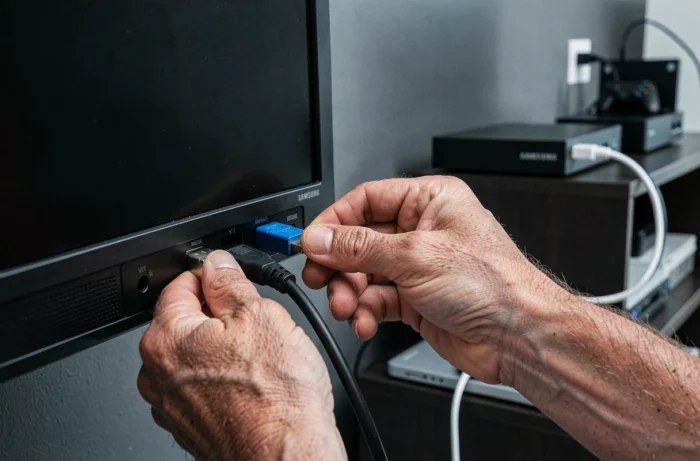
Black Screen on Samsung TV: Distinguishing Power from Backlighting
A black screen with audible sound is the symptom that generates the most concern, as it seems to indicate a panel failure. In reality, two internal components are at play, and distinguishing them significantly changes the repair cost.
Quick Test with a Flashlight
Bringing a flashlight close to the screen surface in a dark room allows you to check if a faint image is still visible. If shapes appear, the backlighting is at fault, not the LCD panel itself. Replacing the backlight LED bars remains a less invasive intervention than a complete panel change.
Power Board and Capacitors
If no image appears, even faintly, the power board may be defective. Swollen capacitors on this board are a classic visual sign of failure. This check requires opening the TV, which voids the warranty if it is still active.
The electrical reset (unplugging the power cable, waiting 30 seconds, then plugging it back in) remains the first reflex before any opening of the casing. A residual charge in the components can cause a software lock that this simple power cycle is enough to correct.
When Samsung Repair Is No Longer Justified
Not all image defects warrant intervention. A single stuck pixel, for example, can sometimes be unstuck through pixel stimulation videos available on the TV’s integrated apps. Samsung does not consider a small number of defective pixels as a defect covered by the standard warranty.
On the other hand, permanent lines visible on the built-in picture test, or defective backlighting confirmed by the flashlight test, point towards a repair or replacement. The cost of replacing a panel often exceeds the residual value of a TV older than five years. In this case, the precise diagnosis made beforehand at least allows for an informed choice between repairing and replacing the device.
The built-in picture test remains the most reliable sorting tool before any decision. Whatever the symptom, starting with it avoids most erroneous diagnoses and unnecessary expenses on parts or labor.